
Show AI How You Work
AI Mastermind · October 7, 2026
Train AI just like a new hire
Record Screen
You do the task. AI observes the demonstration and proposes a reusable Skill.
Computer Use
AI works in the apps you allow, using screenshots, clicks, and typing.

Show the workflow. Save the Skill.
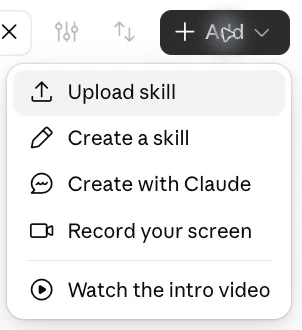
Start a recording
Customize → Skills → Add → Record your screen
Or use + → Record a skill in Cowork.
Approve the requested permissions, then demonstrate and narrate the task. Select Done and review the proposed Skill before saving.
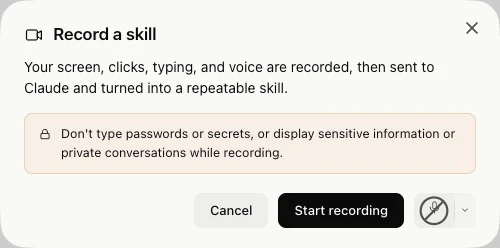
Turn a demonstration into a Skill.
- 01Open Work → Plugins → + → Record a skill. Also available in Codex.
- 02Review the suggested prompt. Add your goal and the inputs that change.
- 03Approve recording and do the task. Stop from the menu bar or overlay when finished.
- 04Review the drafted Skill. Correct its steps and verification rules before replaying.
Requires Computer Use to be enabled. ChatGPT Record & Replay guide
Choose one task
Choose from these examples or pick your own.
Filter a sample tracker by week, select overdue items, and fill your status template.
Turn sample notes into an action table with owners and dates, then prepare an email draft.
Open saved company news and CRM notes; fill a pre-call brief with three talking points.
Turn a sample webinar excerpt into a LinkedIn draft using your brand voice guide.
Walk through one process and capture its steps, screenshots, and exception rules.
Review sample tickets and commits, group changes, and draft a customer-facing update.
Say what changes each time—and what a good result looks like.
Check the instructions AI learned.
- 01Trigger and inputs. When should this Skill run? Which files, dates, or notes change?
- 02Steps and decisions. Did it capture why you selected, skipped, or changed something?
- 03Definition of done. What must the draft contain? How will you check it?
- 04Review boundary. Who approves the result before it is sent or published?
Give AI access to the work.
Help me set up computer use so you can work with my files and apps. Check what you can access and request the permissions you need, including taking screenshots of my screen, clicking, and typing. If there's a setting or approval I need to handle myself, walk me through it one step at a time. Then help me run a small test so we know it's working.
Use in your desktop assistant. Let it check the tools and permissions available in your current session.
Show it. Test it. Use it again.
- 01One short recording. A recurring task with a clear result.
- 02One reviewed Skill. Inputs, steps, decisions, and a definition of done.
- 03One verified test. Screenshots, clicks, typing, and the saved result you inspected.
- 04One next run. A new input and a person who reviews the output.