Live Workshop Guide · Hands-On AI Training

Applied AI
for Leaders

With AI, you can outsource your thinking, but you cannot outsource your understanding.

The three layers of AI understanding for leaders

S
Strategy

What is AI capable of today, and tomorrow?

  • Build a working map: what current models can do, where they break, what's about to land.
  • Translate that into what it means for your role, team, and category.
  • Skip it and you over-promise or get out-positioned.
D
Decisions

What context does AI need to know to do the job well?

  • Role, goal, constraints, what good looks like.
  • Your taste, plus what your team has already tried.
  • The leverage rule: put context in before you ask for an answer out.
J
Judgement

What does good look like?

  • AI gives you three plausible options. Only you pick the fit.
  • Fit means your customer, your culture, your moment.
  • Last-mile work that cannot be outsourced. The part that makes a leader worth more in an AI world.

Two perspectives carry the series

Across the two perspectives of this workshop, you're after two distinct deliverables — and the structure of the guide is built to make both of them legible.

AI for Personal Productivity

You make yourself more productive: drafts, reads, triages, builds, reasons faster than before. The unit of impact is you. Hour 1 is yours — Parts 1 and 2 lead here.

AI for Organizational Leverage

You make your team, function, or company more productive: distribute AI as a teammate, scale workflows across people, capture and reuse institutional context. The unit of impact is your organization. Hour 2 is theirs — Parts 3, 4, and 5 lead here.

Warmups before you start

Hold these in mind as you begin Theme 1

  • Where is time disappearing each week?
  • Which of your daily, weekly, monthly, and quarterly responsibilities are the most challenging?

No need to write answers yet. These are the questions Part 2's Jobs to be Done inventory will give you the structure to answer in writing.

Showcase · before Theme 1

What's already possible

Gemini
Productivity agent (Option 2) · Personal Productivity demo · Theme 1
Strategic leverage

Upload your sources once, get a studio of artifacts back

Drop your PDFs, Google Docs, web pages, and YouTube links into one notebook. From the Studio panel, NotebookLM spins up an Audio Overview as a two-host conversation, a short Video Overview, a Mind Map of the relationships across your sources, and structured Reports like a Briefing Doc, Study Guide, or Flashcard set. Same corpus, six or more formats, each one grounded in the documents you uploaded.

What makes this an agent The Studio runs multi-step generation against a corpus the leader owns, not the open web. Each output is reasoned across the same sources, cited back to those sources, and re-runnable when the corpus changes.
The "corpus plus reusable artifact" pattern is the warm-up for the Skill you package in Part 4 · Exercise 4.1 (How might we…).
Cross-stack support: generate multi-format artifacts from a corpus the leader uploads
Claude PartialProjects plus Skills, no audio or video Source
ChatGPT PartialProjects with file context, no Studio panel Source
Gemini SupportedNotebookLM Studio, native Source
Microsoft Copilot PartialCopilot Notebooks, document outputs only Source
Claude
Personal assistant (Option 1) · Personal Productivity demo · Theme 1
Time back

Prospect on LinkedIn from your own logged-in session

Claude for Chrome drives your actual LinkedIn tab. Cowork wraps that with multi-step orchestration: search Sales Navigator on a criteria string, qualify each result against your ICP doc, draft a personalized connection note from the prospect's posts, pause for your approval, then send. You watch the work happen, approve at the key decision points, and walk away with a queue of warm requests sent from your real account.

What makes this an agent Cowork chains computer-use steps against your live session, holds at the approval gate, and resumes when you say go. It is your account doing the work, not a separate API persona, which is why the messages read like you.
Wire the same pattern into your toolbox in Part 3 · Exercise 3.2 (Toolbox + MCP), then watch it run end-to-end in Part 4 · Leads to LinkedIn demo.
Cross-stack support: prospect inside your own logged-in LinkedIn session with an approval gate
Claude SupportedClaude for Chrome plus Cowork Source
ChatGPT PartialChatGPT Agent runs a virtual browser, not your session Source
Gemini PartialAgent Mode in Ultra preview Source
Microsoft Copilot Not availableno consumer browser agent on LinkedIn Source
Claude
Personal assistant (Option 1) · Organizational Leverage demo · Theme 2
Strategic leverage

Run admin data entry without the click-and-type tax

Give Claude a spreadsheet of new hires, vendors, or candidates and the URL of the form you would normally hand-key into your HRIS, CRM, or ATS. Claude reads each row, walks the fields on the page, types the values, submits, and advances to the next record. Useful exactly where there is no bulk-import API and the admin owner is paying the click-and-type tax themselves.

What makes this an agent Computer use against your real session, looped across a structured input, with the leader watching for the rows where the form does not match the data. The work that used to mean a Friday afternoon of paste-tab-paste-tab becomes review-and-approve.
Set this up alongside your tool stack in Part 3 · Exercise 3.2 (Toolbox + MCP).
Cross-stack support: drive multi-field admin form entry inside a browser-based business system
Claude SupportedClaude for Chrome, beta on paid plans Source
ChatGPT PartialChatGPT Agent in a virtual browser, not your session Source
Gemini PartialAgent Mode preview, not generally available Source
Microsoft Copilot PartialPower Automate desktop flows, not chat-driven Source
Claude
Productivity agent (Option 2) · Organizational Leverage demo · Theme 2
Strategic leverage

Ship the same report every Monday without writing it

Package the report logic once as a Skill: the queries, the table layouts, the narrative voice, the section headers. Hand the Skill to Cowork and set a scheduled task for Mondays at 7am, weekdays, or hourly. Each run, Cowork pulls the fresh numbers through your connectors, assembles the deliverable, and drops it where the team picks it up. You stop writing the report and start editing the exceptions.

What makes this an agent The Skill carries the recipe, scheduled tasks carry the cadence, and Cowork orchestrates the multi-step assembly across your tools. The leader sets the standard once, and the cadence runs itself.
Build your first packaged Skill in Part 4 · Exercise 4.1 (How might we…).
Cross-stack support: run a recurring report on a schedule with a packaged Skill
Claude SupportedCowork scheduled tasks plus Skills Source
ChatGPT PartialScheduled tasks, no Skill packaging Source
Gemini PartialScheduled actions in Gemini app Source
Microsoft Copilot PartialCopilot Studio agents on a trigger Source
Claude
Productivity agent (Option 2) · Organizational Leverage demo · Theme 2
Strategic leverage

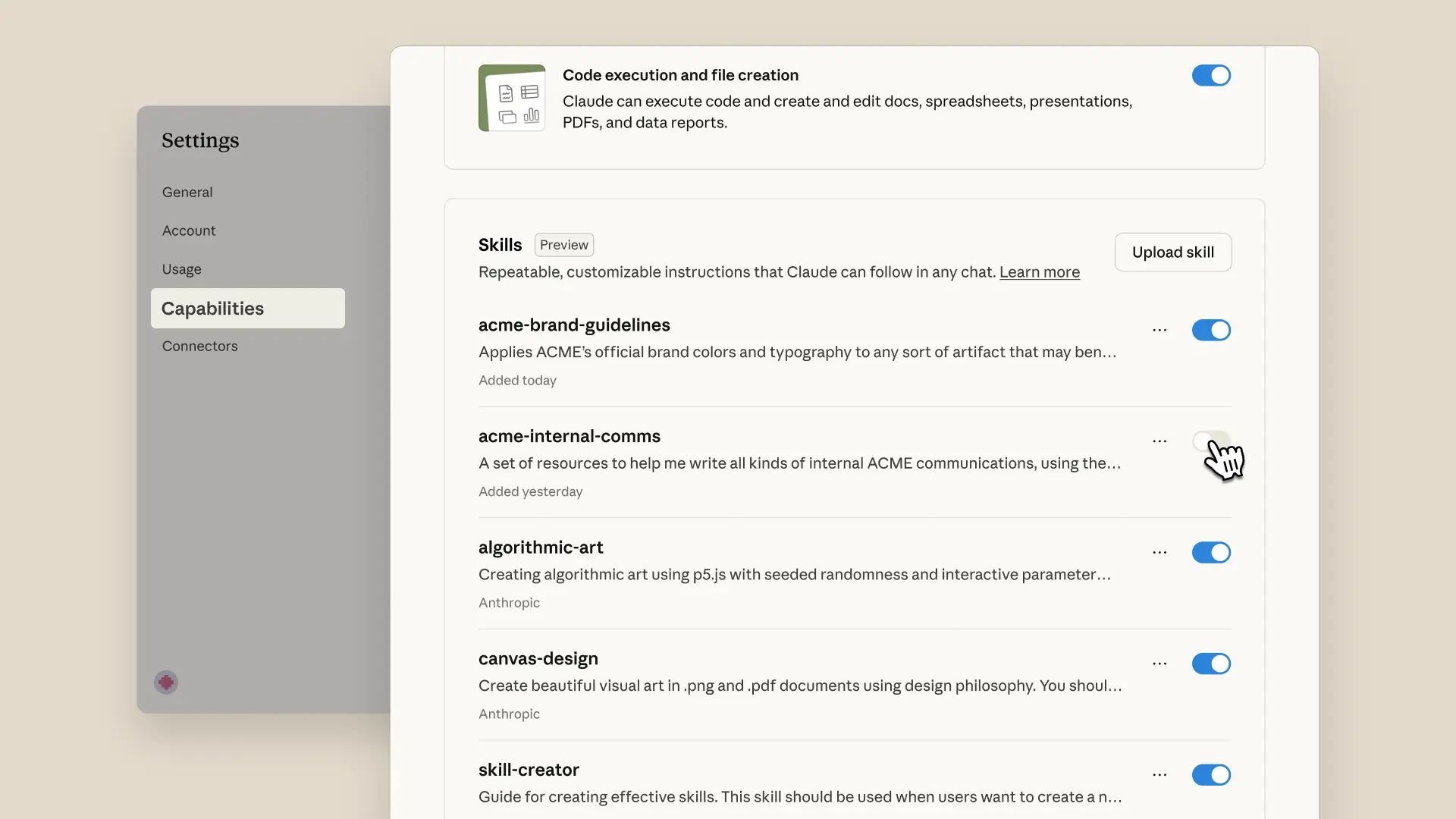
Package a recurring job once, run it forever as a Skill

Claude.ai Capabilities settings panel listing installed Skills with toggles next to each one — the place where a leader installs and manages reusable Skills for recurring jobs.
Source: Anthropic — Introducing Agent Skills

Bundle the instructions, reference docs, and guardrails for a recurring deliverable — your LinkedIn newsletter, your weekly board update, your quarterly investor brief — into one named Skill. From then on you ask for the deliverable in a sentence and Claude runs the packaged workflow, not the raw chat.

What makes this an agent The Skill chains tools (browser, files, connectors), loads its own reference material on demand, and behaves the same way every run. You give feedback into the Skill, not the output, and the next run is better.
Build your first one in Part 4 · Exercise 4.1 (How might we…).
Cross-stack support: package a recurring deliverable as a reusable Skill
Claude Supportednative Skills Source
ChatGPT Partialclosest equivalent is custom GPTs Source
Gemini PartialGems for saved instructions Source
Microsoft Copilot Partialvia Copilot agents + Studio Source
Claude
Personal assistant (Option 1) · Personal Productivity demo · Theme 1
Time back

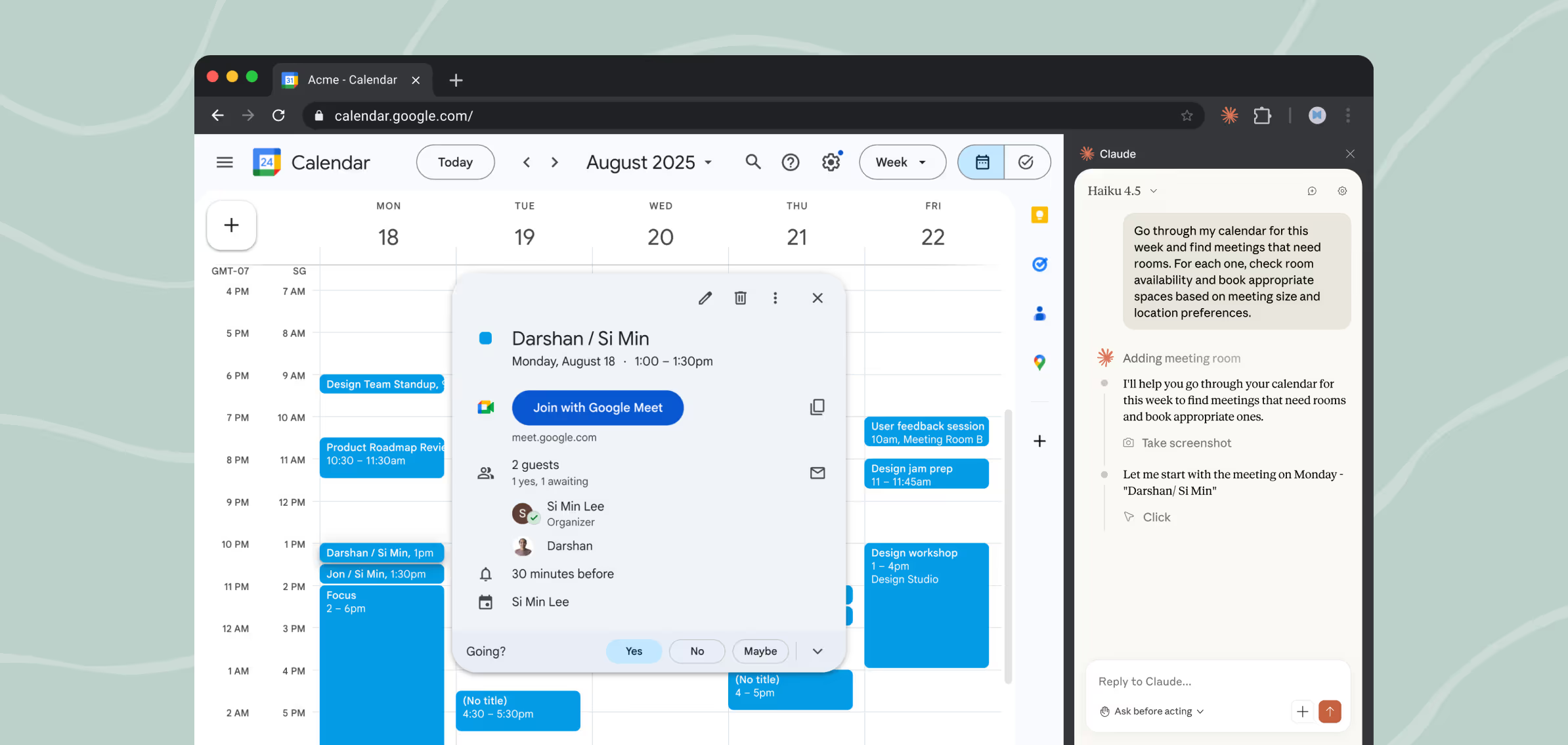
Hand Claude your already-logged-in browser

Claude operating inside a Chrome browser tab — the agent reading the on-screen email content and reasoning about which action to take next, with a side panel showing its in-progress thinking.
Source: Anthropic — Claude for Chrome

The browser extension lets Claude sit in your Chrome session and act on what you're already logged into — CRM, LinkedIn, your scheduler, your inbox. Same model, same skills, but now it can actually do the click-and-type work instead of telling you how to do it.

What makes this an agent Computer use plus your real logins. Claude isn't simulating; it's driving the same browser you'd drive, which is why the leads-to-LinkedIn skill in Part 4 runs end-to-end without an API integration.
Wire it into your toolbox in Part 3 · Exercise 3.2 (Toolbox + MCP), then see it run live in Part 4 · Leads to LinkedIn demo.
Cross-stack support: drive your already-logged-in browser end to end
Claude SupportedClaude for Chrome Source
ChatGPT Partialvirtual browser, not your session Source
Gemini PartialAgent Mode, Ultra preview Source
Microsoft Copilot Not availableno consumer browser agent Source
Gemini
Personal assistant (Option 1) · Personal Productivity demo · Theme 1
Time back

Triage and reply to email without leaving your inbox

Gemini lives inside Gmail as a side panel. It summarizes a thirty-message thread in a paragraph, drafts the reply in your voice using context from your other Workspace files, and surfaces the calendar conflict you would have missed. For leaders who run their day from the inbox, this is the lowest-friction agent in the stack — because it shows up inside the tool they already keep open.

What makes this an agent Gemini reads your inbox, Docs, and Calendar with permission, reasons across them, and produces a finished draft inside the same surface. The leader doesn't switch tools, doesn't paste in context, and doesn't re-explain who they are.
The same "agent shows up where the work already lives" pattern is built in Part 3 · Exercise 3.2 (Toolbox + MCP).
Cross-stack support: triage and draft email inside the inbox you already use
Claude PartialGmail connector, no inline UI Source
ChatGPT PartialGmail connector, no inline UI Source
Gemini Supportednative side panel in Gmail Source
Microsoft Copilot Supportednative in Outlook, not Gmail Source
ChatGPT
Personal assistant (Option 1) · Personal Productivity demo · Theme 1
Time back

A persistent workspace that remembers your role, files, and instructions

A project pins your role, your files, and your standing instructions to one workspace. Open it, ask one question, and the answer already knows you're the CEO, that the board meets in three weeks, and that the deck template is the one you uploaded last quarter. Every major provider now ships this surface — ChatGPT Projects, Claude Projects, Copilot Notebooks, Gemini Gems — so the question is no longer whether to use one but which two or three earn the slot.

What makes this an agent-ish setup Memory and context that persist across sessions. The leader stops re-explaining themselves every morning, which is the difference between a chat tool and a workspace.
Configure the equivalent Claude surface in Part 1 · Exercise 1.2, then plug your business tools into it in Part 3 · Exercise 3.2.
Cross-stack support: persistent project workspace with files, instructions, and memory
Claude SupportedProjects, Pro and Team Source
ChatGPT SupportedProjects, all paid tiers Source
Gemini PartialGems hold instructions, not files Source
Microsoft Copilot SupportedCopilot Notebooks Source
Microsoft Copilot
Productivity agent (Option 2) · Organizational Leverage demo · Theme 2
Strategic leverage

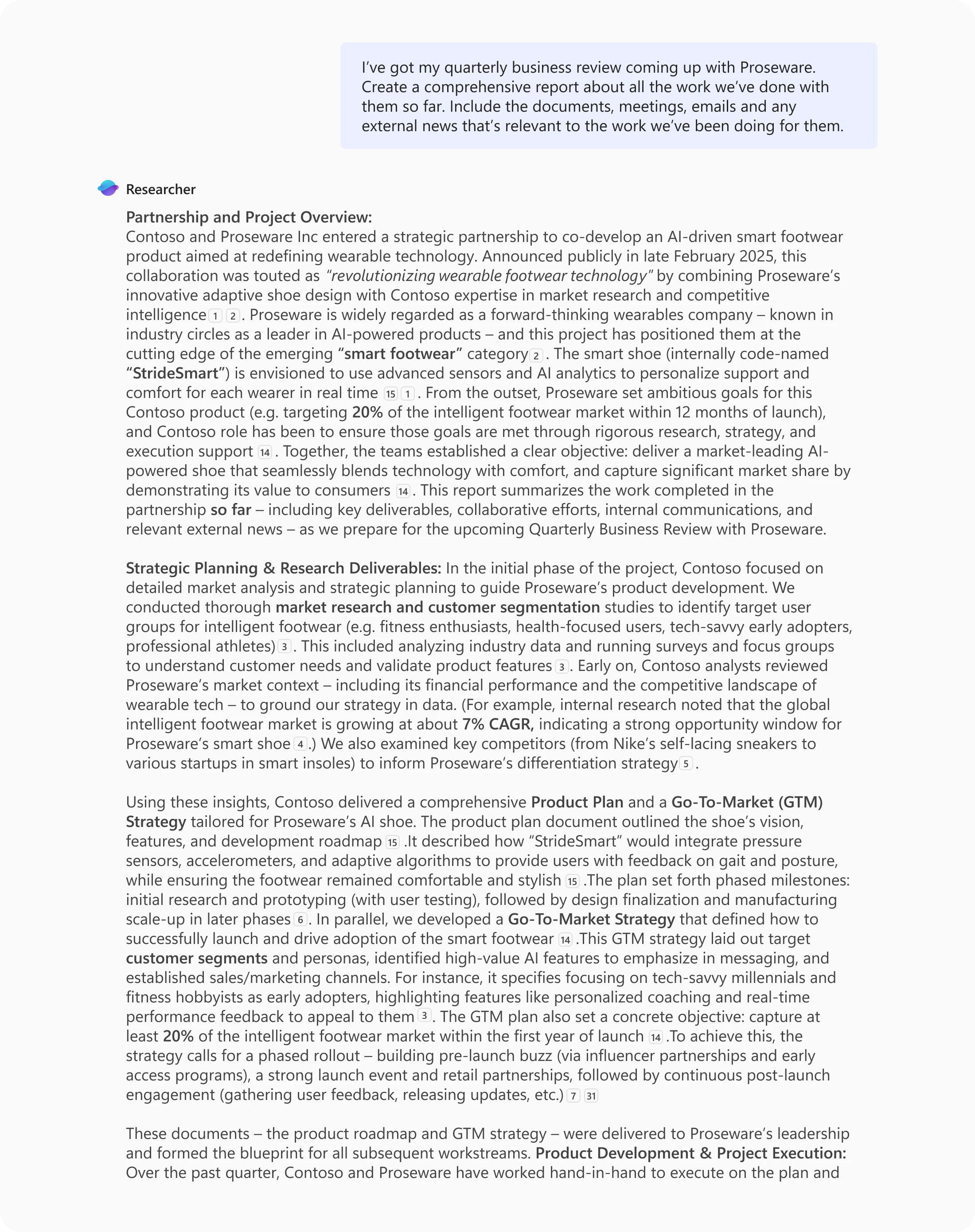
Researcher and Analyst agents inside your Microsoft 365 stack

Microsoft 365 Copilot Researcher agent producing a multi-page quarterly business review report from a leader's work documents, emails, and meeting notes, displayed inside the Copilot chat surface.
Source: Microsoft — Introducing Researcher and Analyst in Microsoft 365 Copilot

If your shop runs on Microsoft, Researcher pulls together a deep multi-source brief — internal docs, emails, meetings, and the web — and Analyst reasons step-by-step over your Excel data with Python. Both run inside the Copilot you already pay for, against the data you already own.

What makes these agents Multi-step reasoning over your real corpus, not single-turn chat. The same pattern as the Sea of Demand research skill and the Excel reverse-engineer demo in the workshop — different vendor, same agentic shape.
See the Claude-side equivalent in Part 4 · Sea of Demand.
Cross-stack support: deep multi-source research and spreadsheet analysis with citations
Claude SupportedResearch mode + connectors Source
ChatGPT SupportedDeep Research, paid tiers Source
Gemini SupportedDeep Research in Gemini app Source
Microsoft Copilot SupportedResearcher + Analyst agents Source

3, 2, 1... Go

Three words, two techniques, one mindset shift. The 60 second grounding before you pick an Option.

3

Definitions to Know

  • Personal Agent is a chatbot assistant that takes action for you (OpenClaw, etc.).
  • Skill is a pre-trained reusable prompt for an agent that accomplishes a specific task.
  • Workflow is a series of Skills and human-in-the-loop (HitL) decisions.
2

Techniques for Today

  • How Might We

    Three magic words by Google Ventures that led to Gmail, Google Meet, Slack, HubSpot, Uber, and countless unicorn startups.

    Exercise. Reference the prompt shared in the live session earlier: How Might We, followed by the assessment brief below.

    Example prompt: How Might We + AI Readiness assessmentHow might we develop a multi-dimensional AI Readiness assessment that uses quantitative scoring. Include organizational change management as a dimension. Also, include the following question and answer format: Strongly agree, agree, no opinion, disagree, strongly disagree. Ensure the questions are easy to understand and can be linked to a prescriptive improvement program. Please try to keep it around 20 questions.
  • Chatbot Cross Check (dueling chatbots)

    Exercise. Cross check the same prompt with your other chatbot.

1

Mindset Shift to Make

From "How can I use this new AI tool?" to "How might we optimize this Job-to-be-Done?"

Examples of Jobs-to-be-Done:

  • Draft the weekly board update.
  • Triage the inbox before standup.
  • Build the Excel model from someone else's data dump.
  • Prep the prospect outreach for HubSpot or LinkedIn.
Part 1 of 4 · Techniques
Theme 1 · Part 1 of 4

Techniques Set up your primary chatbot and your thinking so AI starts compounding instead of feeling like a chore

  • Pick which Option you're starting with and the tool(s) you're starting in.
  • Name the repetitive task you've been stuck on and dodge the How Trap.
  • Configure your primary chatbot the Tech Leaders way: privacy off, adaptive reasoning system prompt loaded.
  • Map Claude, ChatGPT, Microsoft Copilot, and Gemini against the jobs they're best at — which tool for which job.
  • Walk out with one Personal Productivity move scheduled for Friday — yourself first.
What this is

Two Options for where AI plugs into your work

The first call you make as a leader isn't which model to use — every major model is good enough now. The call is the direction of integration: do you bring AI into the tools you already work in, or do you bring those tools into AI?

Option 1

Bring AI into your existing tools

Be more productive with manual work.

What this looks like

  • Claude for Chrome drives the browser you already log into.
  • Gemini in Gmail drafts, summarizes, and triages inside the inbox.
  • Microsoft 365 Copilot in Excel and Word sits next to the cell or paragraph you're already editing.

Friction: shallow context — AI sees only what's on screen right now, so you re-explain yourself each session.

Best first move: one tool you live in, one repeating manual job inside it, this week.

Option 2

Bring your existing tools into AI

Give AI more context to do automatic work.

What this looks like

  • Claude Skills + MCP connectors plug your business systems into Claude.
  • ChatGPT Projects + connectors persist files, instructions, and access in one workspace.
  • Microsoft 365 Copilot agents (Researcher + Analyst) reason multi-step over your real corpus.

Friction: setup cost up front, and you decide scope and kill switches before you turn it loose.

Best first move: one connector or one Project, plugged in, with one job handed off, this week.

Most leaders start with one Option and add the other within a few weeks. The call today is about where you start, not where you finish.

  • Option 1 — Bring AI into your existing tools. Personal-assistant pattern: Claude for Chrome, Gemini in Gmail, Microsoft 365 Copilot in Excel.
  • Option 2 — Bring your existing tools into AI. Productivity-agent pattern: Claude Skills + MCP, ChatGPT Projects + connectors, Microsoft 365 Copilot agents.
  • Option 1 is faster to start; context is shallow each session.
  • Option 2 has a setup cost; context compounds across sessions.
  • Most leaders do both within a few weeks — the call today is about where to start, not where to finish.
  • Part 1 sets your primary surface — Claude, ChatGPT, Copilot, or Gemini — with the other three sitting adjacent for specific jobs.

Exercise 1

Configure your primary chatbot — privacy off, adaptive reasoning system prompt, cross-platform fit

Exercise 1.2

Privacy, system prompt, custom instructions, and the cross-platform map

Step 1 Turn the privacy / training-data toggle off in each chat surface.

Open your primary chatbot's settings, find the privacy / training-data toggle, and switch it off. These toggles are usually on by default — a dark pattern the live session flagged — and they send your conversations to model training. Repeat for every chat surface you'll touch in the next four Parts.

ClaudeSettings → Privacy → "Help improve Claude" → off.
ChatGPTSettings → Data Controls → "Improve the model for everyone" → off.
Microsoft CopilotTenant admin may have already enforced enterprise data protection; confirm with IT.
GeminiActivity controls → "Gemini Apps Activity" → off.
Regulated industries If cloud LLMs are a no-go (finance, healthcare, etc.), talk to your IT lead before connecting business data in Parts 3 and 4.
You'll know you've got it whenthe privacy toggle is off in every chat surface you'll touch in the next four Parts.
Step 2 Paste the adaptive reasoning system prompt into your primary chatbot's instructions field.

Open your primary chatbot's settings and find the system prompt / custom instructions / general instructions field. Paste the prompt below. Tech Leaders refines this prompt continuously — it's the "secret weapon" the live session called out and it's a force multiplier on everything else. Without it, chatbots default to linear logic; with it, they think in atoms — many pieces at once, then synthesize — which is how good human leaders think.

ClaudeSettings → General → overall system prompt field.
ChatGPTSettings → Personalization → Custom Instructions → "Anything else…" field.
Microsoft CopilotYour personal agent's instructions, or your tenant's enterprise system prompt.
GeminiGems → create / edit a Gem → Instructions field.
System prompt — paste into your primary chatbot's instructions fieldUse the Adaptive Reasoning Protocol: Assess the request type, then apply the appropriate method: If solving, analyzing, or debugging → Atom of Thought: Decompose into atomic reasoning units. For each atom: State the logical component Validate independence Verify correctness Then synthesize atoms into final answer. If explaining, learning, or teaching → Feynman Loop: Explain as if teaching a curious beginner. For each cycle: Use a concrete analogy Flag confusion points Ask questions that reveal gaps Then compress into a teachable snapshot. If both are needed → Chain them: First solve via Atom of Thought, then explain the solution via Feynman Loop.
You'll know you've got it whenasking your chatbot "what instructions are you operating under right now?" returns content that came from the block above, and a follow-up like "draft three approaches to my Monday all-hands" returns at least three substantively different angles instead of one.
Step 3 Add a one-paragraph "who I am" block to custom instructions / memory.

Six lines — role, voice, decision filters, current priorities, closest collaborators, and the leadership behaviors you're working on. This carries across every chat. Paste it into your primary chatbot's profile / custom instructions / memory field, and mirror it to the adjacent tools you keep open.

ClaudeSettings → Profile (or the equivalent for your tier).
ChatGPTCustom Instructions ("What would you like ChatGPT to know about you") + Memory.
Microsoft CopilotYour personal agent's instructions or your tenant profile.
GeminiSaved info.
Template — your "who I am" blockRole & remit: I am [name], [title] at [company]. I [scope, P&L if any, who reports to me, who I report to]. Voice: I write in [short sentences / contractions / no exclamation marks / etc.]. I do not say [list — e.g., "circling back", "just to clarify", "exciting"]. Decision filters: When I decide, I ask [3–5 of your real filters — e.g., "smallest reversible step", "does this compound", "what would my chair do"]. Current priorities: My top three this quarter are [three numbered items]. People model: My closest collaborators are [first names, one line on each]. What I am working on improving: [two leadership behaviors I am deliberately practicing].
You'll know you've got it whenasking each chatbot "what do you know about me?" returns at least three specific facts from your block — not generic flattery.
Step 4 Map the cross-platform fit so you're not debating "which one is best."

Use the matrix below. Your job here is to commit to one primary surface and decide which adjacent tools you keep open for which jobs.

ClaudeStrong general-purpose agent; skills + projects + schedules + computer use all live here.
Microsoft CopilotThe path inside the Microsoft 365 stack (Outlook, Teams, SharePoint, OneDrive, Excel). Microsoft Copilot Cowork brings Claude into the Microsoft ecosystem — for a Microsoft shop, this is the strongest enterprise path.
ChatGPTConsumer product strengths — custom GPTs you can share, broad tool ecosystem, fast iteration, strong image / data analysis surface.
GeminiNotebookLM for source-grounded research, Nano Banana for image generation, strong computer vision for handwritten receipts and screenshots.
You'll know you've got it whenyou can finish the sentence "[Claude / ChatGPT / Copilot / Gemini] is my default; I keep [one of the other three] open for ___" with a real reason.
Step 5 First test of the configured surface.

Run this one prompt in your primary chatbot. It exists only to confirm the system prompt and the "who I am" block both fired.

Smoke-test prompt — run in your primary chatbotBased on what you know about me from my custom instructions and your system prompt: what are three substantively different angles on the single biggest leadership move I should be making this quarter? For each angle: the assumption it makes about me, the one risk, and the smallest reversible first move.
You'll know you've got it whenyour chatbot returns three angles (not one), each with an assumption + risk + first move, and at least one of the three points back at a specific fact in your "who I am" block.
Now what to do next

Close Part 1 — what you walk away with

Before you close the tab:

  1. Save the Option / Workflow / How-Trap notes in a doc you'll reuse — they're the diagnostic spine for Part 2's job inventory.
  2. Confirm your primary chatbot is configured the Tech Leaders way: privacy off, adaptive reasoning system prompt loaded, "who I am" block in custom instructions.
  3. Decide which adjacent tool from the remaining three (Claude / ChatGPT / Copilot / Gemini) you'll keep open in a tab, and for what.
  4. In the next 24 hours: run the smoke-test prompt once on a real Monday decision. Feel the difference vs. a generic, unconfigured chat tab. Walk into Part 2 with that feeling.
  5. Confirm the Friday move is a Personal Productivity win — the Organizational arc opens in Theme 2.
Watch out for these — Part 1
  • Option 2 starters skimming the Workflow / How-Trap reflections to get to the connector wiring. That's the How Trap in action.
  • Option 1 starters freezing on the system-prompt paragraph because it looks like code. It's not code — it's a paragraph telling the chatbot how to think. Paste it.
  • Leaving the privacy / training-data toggle on in any chat surface you use. It's a dark pattern; turn it off before you connect business data in Part 3.
  • Treating the cross-platform map as a debate. Pick one primary, pick one adjacent, move on. You can revise after Part 4.
  • Skipping the smoke test. The adaptive reasoning system prompt is the force multiplier — feel it land at least once before you keep going.
Q&A

Open discussion

  1. Which Option are you going with — Option 1 (bring AI into your existing tools) or Option 2 (bring your existing tools into AI) — and what's the one tool you're going to start in?
  2. What repetitive task are you hoping AI will absorb, and how many hours per week has it been costing you?
Part 2 of 4 · Strategy
Theme 1 · Part 2 of 4

Strategy: Prioritizing the right work for AI Jobs to be Done + RICE — and the live-session reminder that the right pick may not be your most critical activity

  • Write 2 to 3 Jobs to be Done in the canonical "When X, I want Y, so I can Z" frame.
  • Score them with RICE (Reach × Impact × Confidence ÷ Effort).
  • Apply the live-session reframe — the right pick is often the work that steals time from your highest-value work.
  • Pick the one Job you'll design in Part 3 and build in Part 4 — on a defensible basis.
  • Pick the one Job that steals time from your $10 task this week — your week, your call. Organizational scope opens in Part 3.
What this is

The "When X, I want Y, so I can Z" inventory — and the live-session reframe of "right"

  • Part 1 set the surface. Part 2 picks the work — two exercises: Jobs to be Done, then RICE.
  • Together they pull you out of the How Trap and the "throw AI on everything" failure mode.
  • AI is grand and abstract by default — the JTBD frame collapses it into a fundable activity.
  • RICE forces comparison so you don't anchor on the loudest item.
  • The live-session reframe — the right pick may not be your most critical activity; it's often what steals time from your $10 work.
  • You leave with one Job — defensibly chosen — to design in Part 3 and build in Part 4.

Exercise 1

Exercise 1 — Jobs to be Done

Exercise 2.1

Write 2 to 3 Jobs in "When X, I want Y, so I can Z" form

Step 1 Read the frame. Read the two live-session examples.

The canonical Job frame, in the live session's words:

When ___, I want to ___ so I can ___.Situation + motivation = outcome

Treat this exercise as a structured inventory of your Roles and Responsibilities, lifted into the canonical Job frame. The frame is the discipline; the inventory is the substance.

The format is deliberate. AI is so grand it leads to abstract goals — "use AI for marketing" is not a Job. The frame forces specificity and turns the abstract into a fundable activity. Two live-session examples, taken verbatim:

Live-session example 1 — newsletter publish

When we have a newsletter that's approved, I want to automatically post it on LinkedIn to drive conversions and traffic.

Live-session example 2 — leads to connection request

When we get a new lead, I want to automatically send a connection request.

(The live session noted the second one used to be a paid manual job and now runs every day on a schedule. We'll see both as live demos in Part 4.)

You'll know you've got it whenyou can read both examples aloud and spot the situation, motivation, and outcome inside each.
Step 2 Write 2 to 3 Jobs of your own. Don't edit. Just get them down.

Live-session coaching during this exercise, in three lines:

  • Don't edit the idea. Just get 2 to 3 down on the page.
  • Stretch your thinking. Not "what can I do with AI" — "how can I work differently by understanding AI."
  • If you can't think of one for yourself, think of something a colleague would want done.

Write 2 to 3 Jobs in the frame. Aim for ones where the situation is recurring (weekly or more often), the motivation is honest (drives revenue, saves a real hour, removes a pain), and the outcome is observable (you can tell at a glance whether the Job got done).

You'll know you've got it wheneach Job is one sentence and follows the "When X, I want Y, so I can Z" frame end-to-end. Resist the urge to write a fourth one this round.
Step 3 Have Claude pressure-test your Jobs and propose 2 more.

Paste your Jobs into Claude. Run this prompt.

Prompt — Pressure-test and expand the Jobs listRole: You are my Jobs-to-be-Done partner. You have my custom instructions and your adaptive reasoning system prompt loaded. Goal: For each of the Jobs I pasted, return: (a) whether it is truly outcome-shaped or a task in disguise; (b) one situation I likely under-specified; (c) one motivation I might be hiding from myself. Then propose 2 additional Jobs you would expect from someone in my role with my priorities. Use the canonical "When X, I want Y, so I can Z" frame for each. Constraints: No generic Jobs. Each candidate must reference something specific from my custom instructions or current priorities. Push back where my Job is really a task. My current Jobs: [paste your 2 to 3 Jobs here]
You'll know you've got it whenyou have a clean list of 4 to 5 Jobs total: your originals lifted to outcome form, plus 2 Claude proposed.
Step 4 Write the Theme 2 carry sentence for your locked-in Job.

For your locked-in Job, write the org-distribution sentence in canonical form:

When this Skill is good enough, [team / function / role] will run it because [reason].Theme 2 carry sentence
You'll know you've got it whenthe carry sentence names a specific team, function, or role and a one-line reason, not a category.

Exercise 2

Exercise 2 — RICE prioritization

Exercise 2.2

Score your 3 Jobs with RICE, then lock in #1

Step 1 Score your 3 Jobs with RICE.
ReachHow often or how broadly the Job is used. Weekly is high. Quarterly is low. Org-wide beats team-only. Reach naturally weights Organizational Jobs higher; that's the right tension.
ImpactHow important to the business: nice-to-have versus mission-critical.
Confidence1 to 10. Calibrated honestly, not aspirationally.
EffortHow hard to deliver. Is the data available, the toolbox in place, computer-use available if there's no API?
RICE formula(Reach × Impact × Confidence) ÷ Effort

Paste your 4 to 5 Jobs back into Claude. Run this prompt.

Prompt — RICE scoring, score 3 and pick 1Role: You are my prioritization partner. You have my custom instructions and the Jobs to be Done list above. Goal: Score every Job with RICE. Return a single Markdown table sorted by RICE descending, then a one-paragraph recommendation on the Top 3 and which one to build first. Constraints: Push back on any Reach or Impact number I might be over-claiming. If a Job has Confidence below 5, ask if it belongs on the list. If two Jobs collapse into one workflow, flag it. After scoring, apply the live-session reframe: the right pick may not be the most critical activity. It may be the work that steals time from the $10 task. For each Top 3 Job, also note time-by-task, value-by-task, and what it steals from.

The output of this step is your Top 3 Jobs: the one you lock in next, plus two more you carry in your queue. The Top 3 is the unit of planning for the rest of the workshop.

You'll know you've got it whenyou have a Top 3 sorted by RICE with the time-steal lens applied, and you can explain in one sentence why your new #1 is #1.
Step 2 Lock in #1. Write it cleanly in canonical form.

Pick one Job. Write it cleanly in the canonical frame with the rationale. This is the one you carry into Parts 3 and 4.

Sample — locked-in Job for Part 3

Job: When we have a newsletter that's approved, I want to automatically post it on LinkedIn to drive conversions and traffic.

RICE: Reach 52 (weekly), Impact 2, Confidence 9, Effort 0.5. Score = 187.

Time-steal: 45 minutes per week of formatting and copy-paste, steals from the $10 work of writing the next piece. Net 30+ hours per year reclaimed.

Sandbox safety: low-risk first build, a draft for review, not auto-publish.

Sandbox first Don't make your first AI build your most critical business process. Pick a Job you can play with and break. If your locked-in Job is mission-critical, find a sandbox-safe variant first.

The locked-in Job is the #1 of your Top 3. Park the other two by RICE rank; they're your queue for the next builds.

You'll know you've got it whenyou have one Job written cleanly with RICE, time-steal, and sandbox-safety notes, and you'd defend the pick to a peer.
Now what to do next

Close Part 2 — what you walk away with

Before you close the tab:

  1. Save the prioritized Jobs table with RICE scores and time-steal notes into a doc you'll reuse in Parts 3 and 4.
  2. Confirm the one locked-in Job is written cleanly in canonical "When X, I want Y, so I can Z" form.
  3. Park the rest of the list. You'll come back to it after the first Skill ships and chains; that's the trust-the-process loop.
  4. In the next 24 hours: tell one peer or report which Job you've picked and why. If they push back, that's data — your Job description either has a missing motivation or the wrong outcome.
Watch out for these — Part 2
  • Writing Jobs as tasks. "Send the Monday update" is a task. The Job is the underlying outcome the task hires itself to deliver. If it reads like a to-do, lift it.
  • Over-claiming Confidence on synthesis Jobs. They look easy. They're not, until you've watched a real output.
  • Defaulting to your most critical business activity for the first build. The live session was firm — that's the wrong pick. Take the time-stealer.
  • Over-budgeting Effort by tradition. Things that took humans an hour often take the agent ten minutes. Penalize Effort accordingly.
  • Locking in more than one Job for Parts 3 and 4. You'll come back to the list after the first Skill ships. Trust the process.
Q&A

Open discussion

  1. Which Job did you lock in, and what makes it the one that steals time from your $10 task?
  2. Where did Claude's pressure test surprise you (did it expand a Job, or narrow one)?
Theme 2 of 2 AI for Organizational Leverage Parts 3 + 4 with Q&A

Build something your team can run

Design the workflow (Part 3), then build, schedule, and chain the Skill (Part 4) — at every step, design as if you were onboarding a new teammate. The "AI as teammate" reframe is the spine of this theme; the Skill you ship is the artifact your team or function can run.

Theme 2 entry move: carry your Option forward, but reframe the work. If you picked Option 1, name the team member whose Outlook / Excel / Chrome you'd roll this out to next. If you picked Option 2, name the function whose connectors you'd plug into next. Write the name. The Skill you build in Part 4 is for them, not just you.

Theme 2 is where the leverage compounds — budget the time. Part 4's four demos are walk-through, not all-required; pick the closest one and treat the others as bonus.

Warmups before you start

Hold these in mind as you begin Theme 2

Part 3 of 4 · Tactics
Theme 2 · Part 3 of 4

Tactics: Design the AI Workflow 10 / 80 / 10 + your toolbox — and the live-session "AI as teammate" reframe

  • Map your locked-in Job onto 10 / 80 / 10 — human-in / AI / human-after.
  • Write the workflow as trigger -> steps -> definition of done -> edge cases.
  • List the toolbox / MCP connections Claude needs — plus computer-use fallback.
  • Specify the kill-switch plan (soft "if X, stop" + platform-level Stop button).
  • Carry the live-session "AI as teammate" reframe into the build.
  • Map the workflow as if onboarding a new teammate. The back-10% reviewer is not always you — name a team member or function lead now.
What this is

10 / 80 / 10 + the toolbox — the workflow spec the agent needs

  • Part 2 picked the Job. Part 3 designs the workflow that delivers it.
  • Exercise 3: map the workflow — trigger / steps / done / edge cases.
  • Exercise 4: build the toolbox — MCP connections Claude can drive.
  • 10 / 80 / 10: 10% human-in (inputs), 80% AI heavy lifting, 10% human-after (approve + feedback).
  • The live-session reframe: AI is less a tool than a teammate. Onboard it; review its work — don't push buttons.
  • The teammate is faster than any human at the middle 80% — but only when the 10s are real.

Exercise 3

Exercise 3 — Map the workflow on 10 / 80 / 10

Exercise 3.1

Trigger, Steps, Definition of Done + Edge Cases — across 10 / 80 / 10

Step 1 Read the 10 / 80 / 10 frame and the "AI as teammate" reframe.
Front 10% — Human-in / beforeWhat the agent needs before it can start: data, approvals, context, the latest input, the relevant lead list, the brand voice samples. Without this, the middle 80% is generic.
Middle 80% — AI does the heavy liftingResearch, extraction, processing, drafting, doing the actual job. This is where AI is dramatically different from a human teammate: faster, parallel, can process more.
Back 10% — Human-in / afterFinal approval. Feedback that makes the skill better next time. Not editing the deliverable line-by-line. The back 10% is "approve, reject, one note to the skill."

The live-session reframe: "AI is less a tool than a teammate." You wouldn't let a new team member start work without instructions (the front 10%). You wouldn't ship their work without checking it (the back 10%). The middle 80% is the work, where AI is faster and more parallel than a person.

You'll know you've got it whenyou can recite the 10 / 80 / 10 split and say one sentence about the teammate reframe.
Step 2 Write the Trigger and Inputs (the front 10%).

For the Job you locked in at the end of Part 2, name:

  • Trigger — what kicks the workflow off. A schedule (every morning at 6 a.m.), a new record (a new lead), an explicit invocation (you typing "run this skill"), or a manual cron.
  • Inputs / dependencies — what data, what approvals, what apps and systems someone opens to do this Job today.
Sample — newsletter publish Job
  • Trigger: a newsletter row in Airtable is marked Approved, sorted by date, status = approved.
  • Inputs: the Airtable row (text + image references), the linked Google Drive image, a logged-in LinkedIn account in the browser.
You'll know you've got it whenboth the trigger and the inputs are written concretely. A peer could run the workflow by hand from them.
Step 3 Write the Steps (the middle 80%).

List the high-level steps as you'd describe them to a new team member. No SOP needed; imperfect bullet points are fine. The next move is asking Claude to fill in what you've missed.

Sample — newsletter publish Steps
  1. Pull the most recently approved newsletter row from Airtable.
  2. Pull the linked image from Google Drive.
  3. Open LinkedIn in the browser (already logged in).
  4. Open the newsletter editor and start a new article.
  5. Paste in the title, the body, and the image. Preserve the formatting exactly as it is in Airtable.
  6. Stop at "Draft for review." Notify me. Do not auto-publish on this first run.
You'll know you've got it whenyour Steps list reads like onboarding instructions for a new team member.
Step 4 Write the Definition of Done and the Edge Cases together.

Definition of Done is the gap most people miss; without it, ROI is ambiguous. Be specific and bold. Then list the past problems and failure modes (the edge cases). At least one edge case should be an explicit "if X, stop" guardrail. That's the soft kill switch in disguise.

Sample — newsletter publish Definition of Done + Edge Cases

Definition of Done: Newsletter drafted on LinkedIn with formatting matching the Airtable row exactly; human reviewer approves in 5 minutes or less and clicks Publish. Net 45 minutes per week reclaimed.

  • LinkedIn's editor mangles bold and bullet formatting on raw paste. Agent must reconstruct formatting natively, not copy-paste.
  • If the linked Drive image is missing or 404s, stop and notify; do not publish without the image.
  • If two rows are both Approved with no clear "next," sort by approval date and pick the oldest. Flag for review.
  • If the title contains "[DRAFT]" or "[TEST]", stop. Do not publish.
You'll know you've got it whenDefinition of Done is observable in 30 seconds tied to a measurable outcome, and at least three edge cases are written with at least one explicit "if X, stop" guardrail.

Exercise 4

Exercise 4 — Your toolbox: MCP connections + computer use

Exercise 3.2

The toolbox — MCP connections + computer use

Step 1 List the tools your business already runs on.

The toolbox is the tools your business already runs on. The more context Claude has on your systems, the better its suggestions, workflows, and skills. Common categories from the live session:

  • CRM
  • Project management / issue tracker
  • Analytics
  • Databases
  • Email / calendar / docs / drive
  • Industry-specific tools

Write yours down. Aim for 5 to 10 entries. You'll plug in the ones the locked-in Job needs in the next step.

If you're rolling this out to a team, list the connectors the team's tooling stack already has, not just your personal stack.

You'll know you've got it whenyou have a written toolbox list with at least 5 systems your business actually uses.
Step 2 Map the Job's toolbox: which MCPs does it need?

MCP connections, the protocol that connects third-party systems to the agent, is the mechanism. Many MCPs are available out of the box in Claude (Connectors menu): Airtable, HubSpot, Google Drive, GitHub, Linear, Slack, plus more. For legacy software with no MCP, there are two workarounds: computer use (Claude drives the browser and any desktop app) or a hosted MCP server stood up for you.

Sample — newsletter publish toolbox
  1. Airtable (content store): MCP, native in Claude's Connectors.
  2. Google Drive (image source): MCP, native.
  3. LinkedIn: no MCP. Use a logged-in browser session via computer use.

Note the third entry: LinkedIn has no official MCP, but Claude can drive a logged-in browser session, which is the same thing in effect.

You'll know you've got it whenevery system the Job needs is mapped to either an MCP connector or a "computer use via logged-in session" path.
Step 3 Connect the MCPs in Claude. Verify each one.

Open Claude -> Settings -> Connectors. Authorize each MCP the Job needs. After each one, verify by asking Claude a connector-grounded question ("list the most recent five rows in my [Airtable base] table" or "what is the most recently modified file in my [Drive folder]") and confirm it returns real data, not a generic answer.

Login risk note Claude doesn't get your password when it drives a browser via computer use. It uses the already-logged-in session, like inviting a teammate to sit at your computer while you step away. If you're regulated, treat computer use the same way you'd treat a contractor over your shoulder.
You'll know you've got it wheneach MCP returns real data from your business when you ask a grounded question.

The kill-switch template moves to Ex 4.1 (paste-in block inside the Skill build).

Now what to do next

Close Part 3 — what you walk away with

Before you close the tab:

  1. Save the workflow spec for the locked-in Job (Trigger, Steps, Definition of Done, Edge Cases) on a single page.
  2. Confirm the toolbox: every MCP connector is authorized and verified; computer-use fallbacks are noted for systems with no MCP.
  3. In the next 24 hours: walk a peer or report through the workflow spec out loud. If they can run it manually, the agent will too.
Watch out for these — Part 3
  • Skipping the Definition of Done. Without it, ROI is ambiguous and the agent has nowhere to aim.
  • Treating "AI as a tool" instead of "AI as a teammate." The instructions you write are onboarding, not button labels.
  • Authorizing MCPs without testing them. If the verification query returns a generic answer, the connector is not loaded.
  • Skipping the workflow spec walk-through with a peer. If they can't run it manually, the agent will hit the same blockers.
Q&A

Open discussion

  1. What's in your toolbox today that doesn't have an MCP yet, and how are you planning to bridge that gap?
  2. Which step of the 10/80/10 is the hardest to write for your locked-in Job: the trigger, the back-10% review, or the edge cases?
Part 4 of 4 · Practice
Theme 2 · Part 4 of 4

Practice: Building the AI Agent Workflow "How might we…" + meta-prompting — build, schedule, and chain the Skill into something that compounds

  • Generate and install a working Claude skill for your Part-2 Job.
  • Use the "How might we…" meta-prompt formula.
  • Answer Claude's own clarifying questions before generation.
  • Apply the sandbox mindset — first build is low-stakes.
  • Put the skill on a schedule (or commit a go-live date) and plan the stagger.
  • Build a second granular skill that chains with the first; install the feedback into the skill, not the output discipline.
  • Walk four documented demos (newsletter, leads, PowerPoint screenshot, research) and pick the closest model.
  • Build the Skill on a Job a function or team could adopt — then schedule it and chain it into something that compounds. The four demos model org-distributable shapes.
What this is

"How might we…" — the three-word prefix that gets you out of the How Trap

  • Part 4 is the build — and the move that turns the build into compounding leverage. The meta-prompt formula is three words: "How might we ___".
  • The live session still prefixes with it even when the answer seems obvious — and is regularly surprised.
  • Paste in your Part-2 Job, Part-3 workflow, Part-3 toolbox. Let Claude ask clarifying questions, then generate.
  • Then turn the skill into compounding leverage: schedule it on a cron, build granular > monolithic, send feedback into the skill, not the output.
  • Four demos in this Part are the worked examples — pick the one closest to your build; the others are bonus.
  • Language: a skill is a packaged reusable prompt + docs; a workflow runs one or more skills; an agent is what runs them. Don't get lost in marketing.

Exercise 4.1

Build your first skill — "How might we create a new skill to ___"

Exercise 4.1

Meta-prompt -> clarifying questions -> generated skill -> first validation run

Step 1 Confirm chat vs Cowork.

Re-read the Steps from Part 3 Exercise 3.1 Step 3. If any step requires driving a browser or a desktop app (clicking inside LinkedIn, screenshotting a PowerPoint, navigating a logged-in CRM tab) — build the skill in Claude Cowork. Otherwise build it in Claude chat. The chat-vs-Cowork gotcha from the live session: Cowork-built skills don't auto-install; you'll download and install under Settings -> Capabilities -> Skills -> Customize after generation.

You'll know you've got it whenyou've written "chat" or "Cowork" next to your Job and you've opened the right surface.
Step 2 Write your "How might we" meta-prompt.

Use the formula. Paste in your Part 2 Job + your Part 3 workflow spec + your Part 3 toolbox. Don't over-prescribe the path; describe the outcome and constraints.

Meta-prompt template — paste into Claude (chat or Cowork)How might we create a new skill (or set of skills) to do [your Job to be Done in canonical form]. Workflow context (from my Part 3 spec): - Trigger: [paste] - Inputs / dependencies: [paste] - Steps as I currently understand them: [paste] - Definition of done: [paste] - Edge cases: [paste] - Kill-switch rules (if X, stop): [paste] Toolbox (from my Part 3 toolbox map): - MCP connectors authorized: [list] - Systems with no MCP that you'll drive via computer use: [list] Ask me clarifying questions before generating the skill. Where my spec is silent, ask — don't guess. Where you have a better way to structure a step than I described, propose it. The point is the outcome, not the steps I wrote.
Optional addition for Theme 2 Organizational arc Append one line to your "How might we…" prompt: ". . . and design it so [name the team or function] can run it without me in the loop within two weeks." This is the Theme 2 hinge — the Skill stops being "mine to run" and becomes "ours to run." Use the team / function you wrote in your Part 2 Theme 2 carry sentence.
One suggested first build for Theme 1 If your locked-in Job is content-shaped (talks, decks, newsletters, internal explainers), one strong first build is the Elevate slides Skill: turn your own slide deck into an agent Skill so Claude can deliver the talk-track on demand for prep, recap, or a teammate's onboarding. Use the meta-prompt template above; the inputs are your slide deck and your speaker notes.
You'll know you've got it whenthe meta-prompt is one block, ends with "ask clarifying questions before generating," and includes the kill-switch rules from Part 3.
Step 3 Answer Claude's clarifying questions.

Claude will ask 2 to 5 clarifying questions before generating. Answer them honestly and concretely. Where you don't know, say "I don't know — please research this and propose, then ask me to confirm." That move is meta-prompting at its best — you don't have to know the steps; you have to know the outcome.

From the live session — audience question #1
What if I don't know where the data lives?

An audience question asked: how do I do this when I don't know what tools or data are even out there for the new approach? People online are getting data I don't know how to get.

The live-session answer: two legitimate channels — (1) publicly available, (2) accessible via your logged-in browser. Claude can do both. If you don't know the steps, ask Claude to research the steps for you, then become the human in the loop on the result. You don't need to know how to do the research; you need to ask Claude to research how to find the research.

A live-session frame: "It's almost as loose as that. You're working with a very strange new employee that doesn't know your subject matter but is an expert in finding out."

See the Sea of Demand demo below — it's the worked answer to that question.

Source: live-session Q&A, 2026-05-13.

You'll know you've got it whenyou've answered every clarifying question with a specific answer or an explicit "I don't know — please research and propose."
Step 4 Answer Claude's questions and ship: generate, install, validate.

Claude will generate the skill: instructions, called connectors and computer-use moves, kill-switch rules baked in, definition of done. If you built in chat, the skill auto-installs. If you built in Cowork, install it now under Settings -> Capabilities -> Skills -> Customize.

Paste in the kill-switch template (relocated from Part 3) so the generated Skill carries the soft guardrails from the start.

Kill-switch template — paste into the Skill's instructionsIf any of the following are true, STOP immediately and notify me: - The title or content contains [DRAFT], [TEST], or [HOLD]. - The data source returns zero rows or a 404 / 5xx error. - The action would touch a [list of high-stakes accounts or contacts]. - Any required input is missing or null. - You are not certain you understood my instruction. Ask one clarifying question instead of guessing. Be literal. The more literal the better.

Then run the Skill once. Sandbox-safe. Watch Claude show its work. If anything looks off, hit the platform-level Stop button (the hard kill switch) and add a literal instruction to the Skill. Be literal. This is the back-10% review: not editing the output, but improving the Skill.

Feedback into the skill, not the output Spend your time making the skill better, not the deliverable. Most people back-and-forth-edit every output. Put that feedback into the skill.

Schedule this with /schedule once it works.

You'll know you've got it whenthe Skill is installed, the kill-switch lines are pasted in, and the Skill has produced one output that satisfies your Definition of Done (or you've added one new instruction so the next run will).

Demo walk-through

Live demo walk-through — LinkedIn newsletter publish

One live demo in Part 4. The newsletter publish demo is the canonical "How might we…" build and works as a model for most first builds.

Demo 1

LinkedIn newsletter publish — Airtable -> Google Drive -> browser -> LinkedIn

Job to be Done

When we have a newsletter that's approved, I want to automatically post it on LinkedIn to drive conversions and traffic.

Arc tag: Personal Productivity anchor with Organizational expansion — the first run pays off your own newsletter cadence; the second-week handoff makes it the marketing team's surface.

Toolbox
  • Airtable (content store) — MCP connector, authorized in Claude Settings.
  • Google Drive (image source) — MCP connector.
  • LinkedIn — no MCP. Logged-in browser session driven via computer use.
The verbatim "How might we…" prompt — from the live session
Prompt — exact live-session wording, paste verbatimHow might we create a new skill that pulls the next scheduled newsletter content from Airtable and posts the content formatted exactly as it is in Airtable as a new LinkedIn article starting at this page.
The three clarifying questions Claude asked
  1. Which Airtable base holds the newsletters? — the live session shared a link to a sample post; Claude figured out the table and key field details from the link.
  2. How should the skill determine which newsletter is "next"? — by date and by approved status (most recent approved).
  3. Auto-publish or stop for review? — draft and stop for review (the back-10% human-in-the-loop guard, since this was the first run).
Human-on-the-loop validation

The skill generated, ran, downloaded the linked image from Google Drive (writing the code to do so behind the scenes — the live-session host never had to see or care about the code), opened LinkedIn in the browser, and drafted the newsletter formatted correctly on the first try. Historically humans had formatting errors copy-pasting; the agent had none. The live-session host reviewed and clicked Publish.

Why this demo matters

This is the canonical "How might we…" build. If your locked-in Job is content publishing or any "data store -> transform -> browser action" shape, use this demo as your template.

Now what to do next

Close Part 4 — what you walk away with

Before you close the tab:

  1. Confirm the Skill is installed (auto-installed if you built in chat; installed under Settings -> Capabilities -> Skills -> Customize if you built in Cowork).
  2. Confirm one validated run exists: the Skill produced an output that satisfies your Definition of Done from Part 3.
  3. Save your "How might we…" prompt and the clarifying-question answers in your notes. You'll reuse the pattern on every subsequent skill.
  4. Loop back to your Part-2 Jobs list. Pick the next-priority Job. Schedule a time to start the loop again. Trust the process.
Watch out for these — Part 4
  • Building your first Skill on your most critical business process. Sandbox first.
  • Over-prescribing the steps in the "How might we…" prompt. You care about the outcome. Let Claude propose the steps.
  • Guessing on Claude's clarifying questions. If you don't know, say "research it and propose, then ask me to confirm." That's meta-prompting at its best.
  • Building in chat when you need computer use, or in Cowork when you don't. Re-check the chat vs Cowork decision at Step 1.
  • Editing the output instead of editing the Skill. The back-10% feedback goes into the Skill, not the deliverable.
  • Skipping the loop back to the Part-2 Jobs list. That's the compounding move; the next-priority Job is sitting there.
Q&A

Open discussion

  1. Did Claude ship a Skill that satisfied your Definition of Done, or did you have to add an instruction back? Which one?
  2. What's the second Skill you'd build next week, and what does it chain to?